SocialMate links to WhatsApp the same way the official WhatsApp desktop and web apps do — by linking a device. There’s no WhatsApp Business requirement and no Meta approval. Two ways to connect:
Option A — scan a QR code
- In the app, click Add account.
- A QR code appears. On your phone, open WhatsApp → Settings → Linked devices → Link a device.
- Point your phone at the QR code. The account pairs in a few seconds and shows up as connected.
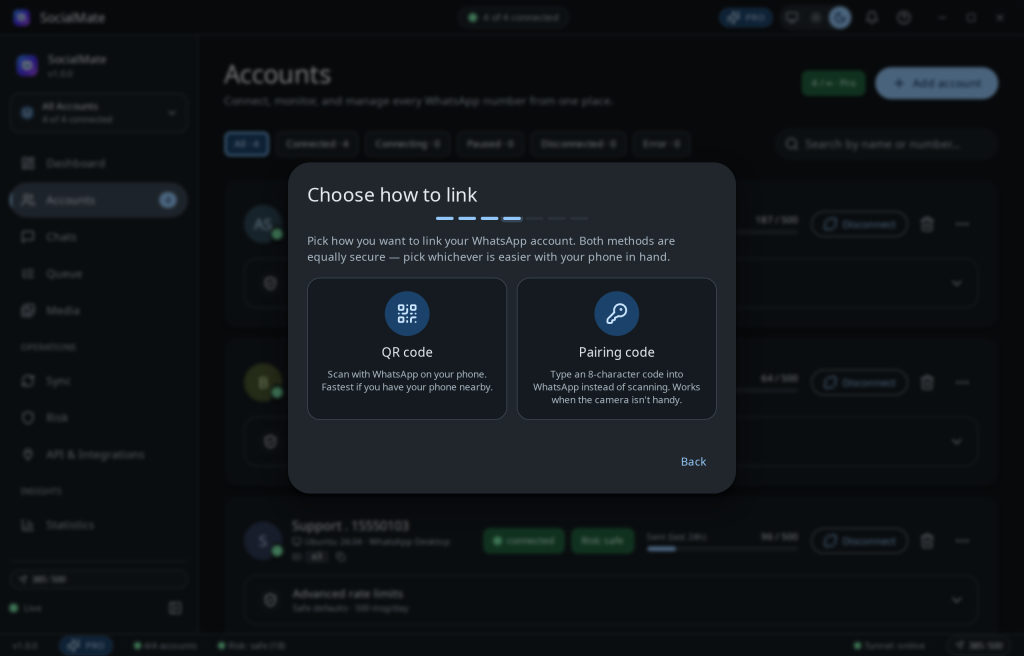
Option B — enter a pairing code
Can’t scan a screen? Use a pairing code instead.
- In the Add-account wizard, switch to Pairing code and enter your phone number.
- SocialMate shows an 8-character code.
- On your phone, choose Link with phone number instead and type the code.
Tip. The connection is a direct WebSocket link — fast and lightweight, with no hidden browser. If the connection drops, SocialMate auto-reconnects with backoff and resumes your session.
Your device identity
Each account is assigned one permanent linked-device identity at creation — a realistic desktop profile (operating system + browser, e.g. macOS Sonoma · Chrome), the same kind of identity WhatsApp Web and WhatsApp Desktop register. It’s never rotated — consistency is what looks normal to WhatsApp. More on that in Device fingerprints, explained.
If it won’t connect
See The QR code won’t scan and The app won’t connect.