SocialMate runs the whole WhatsApp automation server on your own machine — your contacts, chats, media, and sessions never leave it. You can run it two ways: the desktop app (Windows, macOS, Linux), or self-hosted headless on a VPS with Docker or systemd, managed from a web console in your browser. Both are the same app from the same release. Installing takes a couple of minutes and you don’t need an account to use the free tier.
Download the app
- Open the download page and pick your platform — Windows, macOS, or Linux.
- Run the installer. The Windows installer isn’t code-signed and the Mac app isn’t notarized by Apple yet, so on first launch Windows SmartScreen asks you to confirm (More info → Run anyway) and macOS asks you to allow the app once — see macOS says SocialMate is damaged or can’t be opened.
- Launch it. You’ll be walked through a short onboarding (a scroll-to-end disclaimer and a risk acknowledgment — both required, both logged) before the main app opens.
Prefer a server? Run SocialMate headless on a VPS with Docker or systemd and manage it from the same GUI in your browser — see Run SocialMate on a VPS (Docker & systemd).
Tip. SocialMate lives in your system tray with per-account status, a risk score, and a one-tap Pause-All button. On Pro it can also auto-start on boot and reconnect your accounts on launch — turn that on in Settings → Startup & tray.
System requirements
- Desktop: Windows 10/11, macOS 12+, or a modern 64-bit Linux desktop.
- Server: any 64-bit Linux VPS with Docker (or Node 22 for the systemd install).
- An internet connection and a phone with WhatsApp to link (the same way you’d link WhatsApp to a laptop).
- That’s it — no Meta Business approval to wait for.
Staying up to date
On Windows and Linux the desktop app updates itself through GitHub Releases (stable and beta channels): it shows a download-progress banner and installs on the next restart. On a Mac, SocialMate tells you when a new version is out; download it from the macOS download page and drag it into Applications to replace the old one. A self-hosted server updates by pulling the new image (docker compose pull && docker compose up -d) or running socialmate-update on systemd — schema migrations run automatically on boot and your accounts survive. You’ll always know what changed — see the changelog.
Next steps
- Link your WhatsApp (QR or pairing code).
- See what Free includes and what Pro unlocks.
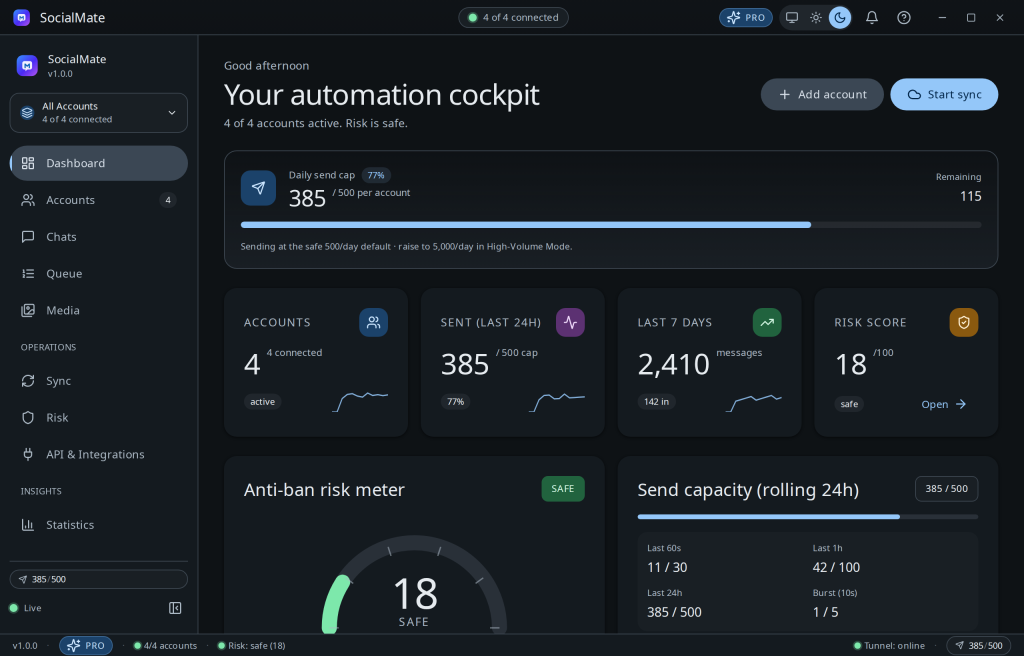
- Take a tour of the dashboard.