The very first time you open SocialMate, it runs a short eight-step setup before the main app appears. It takes about a minute, and it’s deliberately honest: you’ll read and accept a disclaimer, acknowledge that no automation is risk-free, and choose your license. Nothing connects to WhatsApp until you’ve been through it.
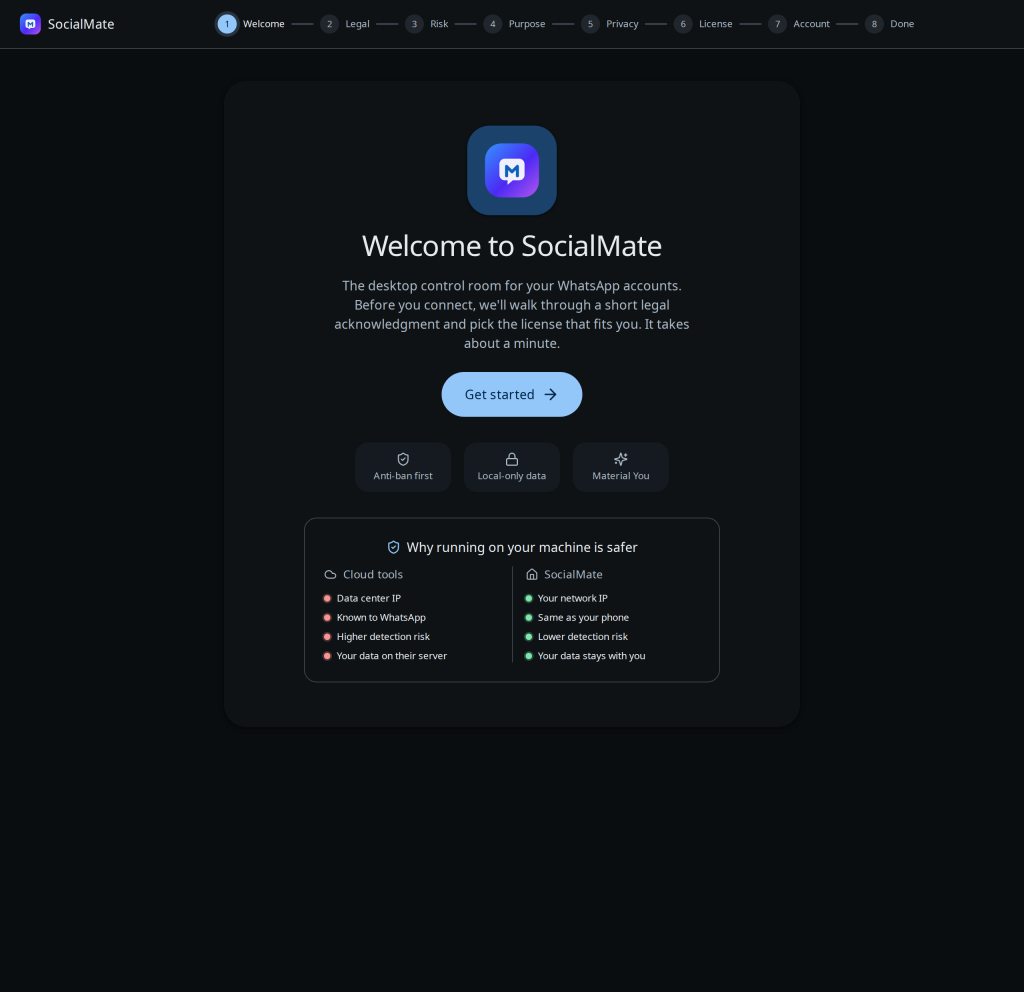
The eight steps
- Welcome. A quick overview — anti-ban first, local-only data — and a side-by-side on why running on your own machine is safer than a cloud blaster.
- Legal. The disclaimer. You scroll to the end and tick to accept; the acceptance is timestamped and written to the local audit log.
- Risk. A plain-language acknowledgment that WhatsApp can restrict or ban any number and that you use the tool at your own risk. Also scroll-to-end, also logged.
- Purpose. You declare how you’ll use SocialMate (e.g. order updates, bookings, support). This sets honest expectations — it isn’t a blasting tool.
- Privacy. Opt in or out of anonymous, no-PII analytics. It’s genuinely optional and you can change it later in Settings.
- License. Stay on Free (the default), start the 7-day Pro trial — a dialog asks for your email; the trial is bound to this machine, one per machine — or paste a Pro key. See Free vs Pro for what each unlocks.
- Account. Optionally link your first WhatsApp number right away — or skip and do it later from the Accounts page.
- Done. A short summary, and the main dashboard opens.
Why we put the risk acknowledgment up front. No tool is 100% ban-proof. We’d rather you know that before you connect a number than after — see Will I get banned? for the honest answer.
Tip. The legal and risk acknowledgments are recorded in the local audit log with a timestamp — useful if you’re running SocialMate for a team or client and need a record of acceptance.
After setup
Once you’re through, head to Link your WhatsApp if you skipped the account step, then take a tour of the dashboard.