Switching computers is self-service and takes a minute.
Move it in three steps
- On the old computer, open Settings → License → Deactivate. Doing it from the app frees the seat instantly, so the new machine can activate right away. (Each device is listed by the same 8-character fingerprint shown under Settings → License → “This machine”.)
- Install SocialMate on the new computer (download here).
- Open Settings → License on the new machine, paste your key, and activate.
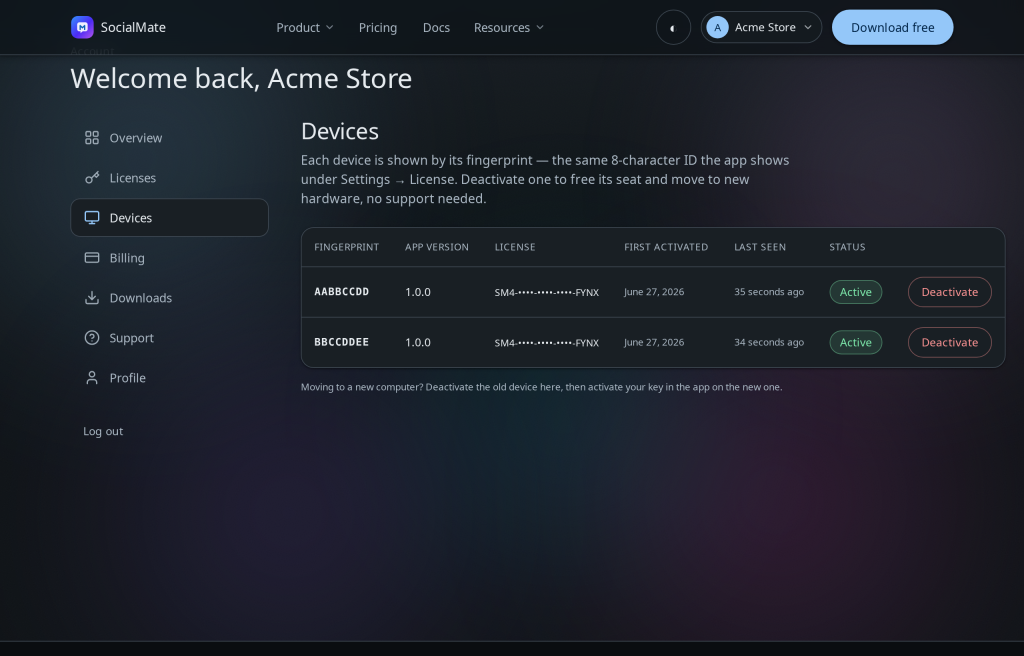
Old machine gone, dead, or unreachable? Deactivate it from the Devices tab in your account instead. That frees the seat once the old device next checks in (within ~12 hours) or within 2 days at most — so the new machine can activate then. If you still have the old computer, deactivating from inside its app is instant.
Bring your data along (optional). Your archive lives in ~/.wa-agent-server/. Copy that folder to the new machine (app closed on both) to carry history and sessions over.
Was this helpful?
Thanks for the feedback!