SocialMate 2.0 runs headless on a Linux server in addition to the desktop app. It’s the same app from the same release — every feature, REST endpoint and webhook — just packaged for a server and managed from a web console instead of a window. The desktop app is unchanged and still the flagship. This page is the overview; the step-by-step install guides are linked below.
Who this is for
Self-hosting is the right choice when you want SocialMate running 24/7 without leaving a laptop on — on a $5/month VPS, a home server, or any always-on Linux box. You manage everything from your browser: pair numbers, change settings, watch the live feed, mint API keys, take upgrades. If you just want it on your own computer, the desktop app is simpler — you don’t need this.
What you get
- The whole backend — WhatsApp engine, anti-ban, Smart Queue, sync, webhooks, the
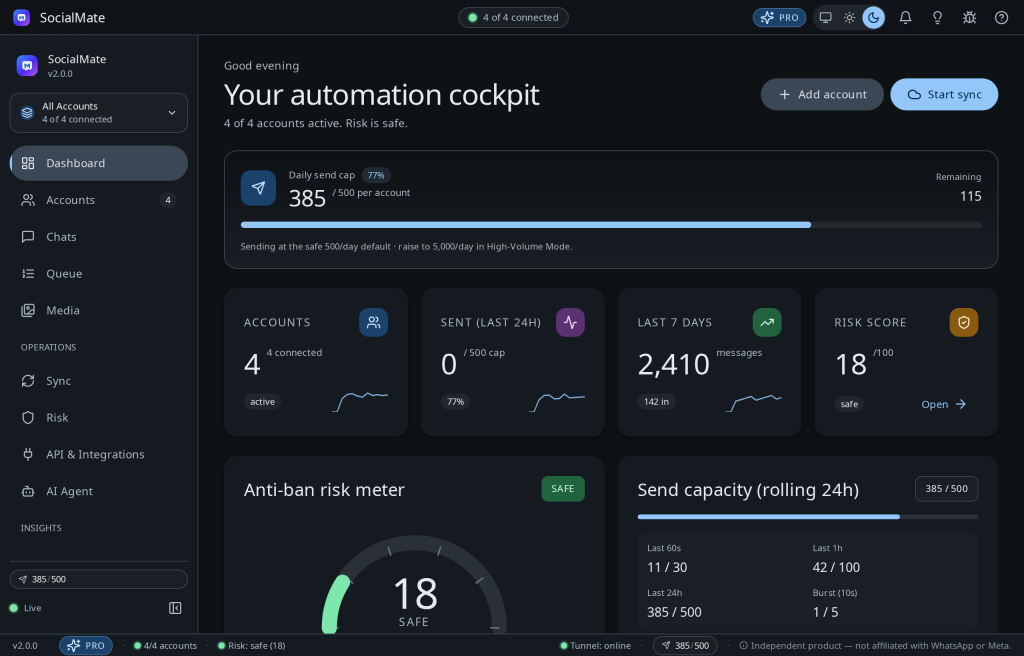
/v1REST API, the Cloudflare tunnel — with no display required. - The same app GUI in your browser at
http://<host>:3456/admin, behind a single admin login. Pair accounts (the QR shows in the browser), change every setting, manage your license, and take upgrades — all remotely. - The REST API at
http://<host>:3456/v1(with yourx-api-key); your n8n node and MCP server point at it exactly as they do the desktop app.
Docker or systemd — which one?
- Docker (recommended). One file, one command, clean updates, nothing installed on the host. Pick this unless you have a reason not to. → Install with Docker, step by step.
- systemd (bare metal). No Docker on the box — a one-line installer sets up Node and a system service. → Install without Docker (systemd).
Both give you the exact same server and the same /admin console. You can’t tell them apart once they’re running.
Licensing — persist the data volume. The license binds to a stable machine id cached in the data dir. One persisted volume = one stable machine id = one seat. If the data dir is ephemeral (recreated each start), the machine id rotates and the server drops to Free. Your install shows up as a Docker/VPS device in your account. Both install guides set this up correctly — just don’t delete the volume.
Networking & anti-ban on a VPS
One honest trade-off comes with a server. On the desktop, SocialMate connects to WhatsApp from your residential IP — ideally the same home network as the phone that owns the account — the network picture WhatsApp already associates with your number. A VPS runs on a datacenter IP, which carries lower network reputation. The anti-ban pipeline is identical either way, but the IP is the one thing a VPS can’t match a home connection on.
Two honest ways to handle it: keep safety-critical numbers on the desktop app at home, or route the VPS account through your own residential/mobile proxy (Pro) — open the account in /admin, set an Outbound proxy (socks5://… or http(s)://…), test it, and save. It reduces a risk factor; it is not a guarantee against bans. Full picture: Desktop vs VPS: which is safer for your number?
Next steps
- Install with Docker — step by step (the recommended path).
- Install without Docker (systemd).
- Keep it running — restart, auto-start after a reboot, and updates.
- Troubleshooting — can’t reach it, lost password, and more.
Full reference. Environment variables, backups, and the reverse-proxy recipe are in the self-hosting docs.