Once SocialMate is installed, you’ll want it to stay up on its own. This page answers the common “what happens if…” questions for both install methods.
If it crashes, does it restart itself?
Yes — automatically, on both.
- Docker: the compose file sets
restart: unless-stopped, so Docker relaunches the container if it ever exits or crashes. - systemd: the service is set to
Restart=on-failure(with a 5-second back-off), so systemd relaunches it if it fails.
Will it come back after the server reboots?
This is the important one for a VPS — you want it up again after any reboot without logging in.
systemd — yes, automatically
The installer already ran systemctl enable socialmate, so the service starts on every boot. Confirm any time:
systemctl is-enabled socialmate # → enabledIf it ever says disabled, turn it back on with sudo systemctl enable socialmate.
Docker — yes, as long as Docker itself starts on boot
restart: unless-stopped only kicks in once the Docker service is running — so the Docker daemon has to be enabled on boot too. It usually is on Ubuntu/Debian, but make sure:
sudo systemctl enable dockerWith that in place, your container comes back on its own after every reboot.
One exception. If you deliberately stopped the container (docker compose stop or down), Docker leaves it stopped after a reboot — that’s on purpose. Start it again with docker compose up -d.
Do my linked accounts reconnect too?
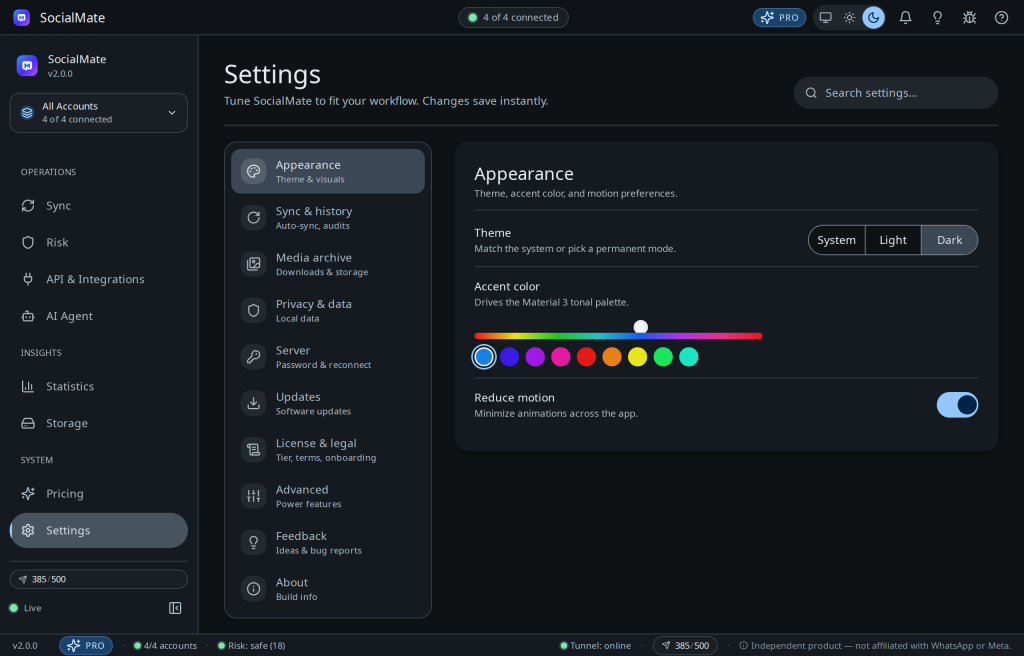
On Pro, yes — automatically. When the server restarts, every linked WhatsApp account comes back online on its own (on by default; toggle it under Settings → Server → Auto-reconnect accounts on restart in the console). On Free you reconnect them yourself — the quickest way is Settings → Server → Reconnect all, which brings every disconnected account back in one click.
Restart, stop, start — the everyday commands
Run these from your ~/socialmate folder (Docker) or anywhere (systemd):
| What you want | Docker | systemd |
|---|---|---|
| Restart | docker compose restart |
sudo systemctl restart socialmate |
| Stop | docker compose stop |
sudo systemctl stop socialmate |
| Start | docker compose up -d |
sudo systemctl start socialmate |
| Status | docker compose ps |
systemctl status socialmate |
| Live logs | docker compose logs -f |
journalctl -u socialmate -f |
Restarting is safe and quick: your linked accounts stay linked (the WhatsApp session lives in the data dir) and the server reconnects on its own.
Updating to a new version
- Docker:
docker compose pull && docker compose up -d - systemd:
sudo socialmate-update
Database migrations run automatically on the next boot, and your accounts, settings, and license seat survive — they’re in the persisted data dir. See what changed in each release on the changelog.
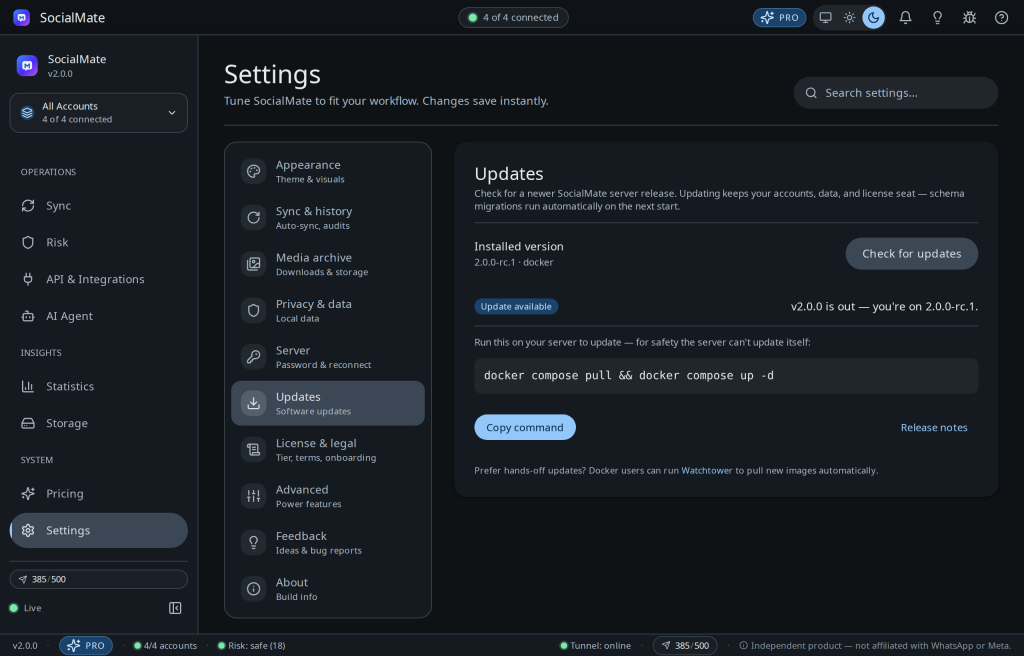
The console checks for you: open Settings → Updates and it tells you whether a newer release is out and gives you the exact command to run, with one-click Copy. It won’t apply the update for you — for safety the server runs unprivileged and can’t replace its own code or restart its own service — so you run that one command on the host. Docker users who’d rather not think about it can run Watchtower to auto-pull new images.
Back up before a big upgrade. Migrations are forward-only. On Docker: docker run --rm -v sm-data:/data -v "$PWD":/backup busybox tar czf /backup/sm-data-backup.tgz -C /data .
Securing the login with HTTPS
A VPS has a public IP, so you can reach http://<ip>:3456/admin straight away — but over plain http your password travels in cleartext and the login cookie can’t be marked secure. Before you depend on it, put TLS in front. Two easy options:
- A reverse proxy such as Caddy, which fetches a free Let’s Encrypt certificate automatically. Point a subdomain at your server and proxy it to
127.0.0.1:3456. - The Pro named tunnel — turn it on in Settings → Network. Cloudflare terminates TLS and gives you a stable HTTPS hostname with no open port at all.
The exact reverse-proxy recipe is in the self-hosting docs.
Change your admin password
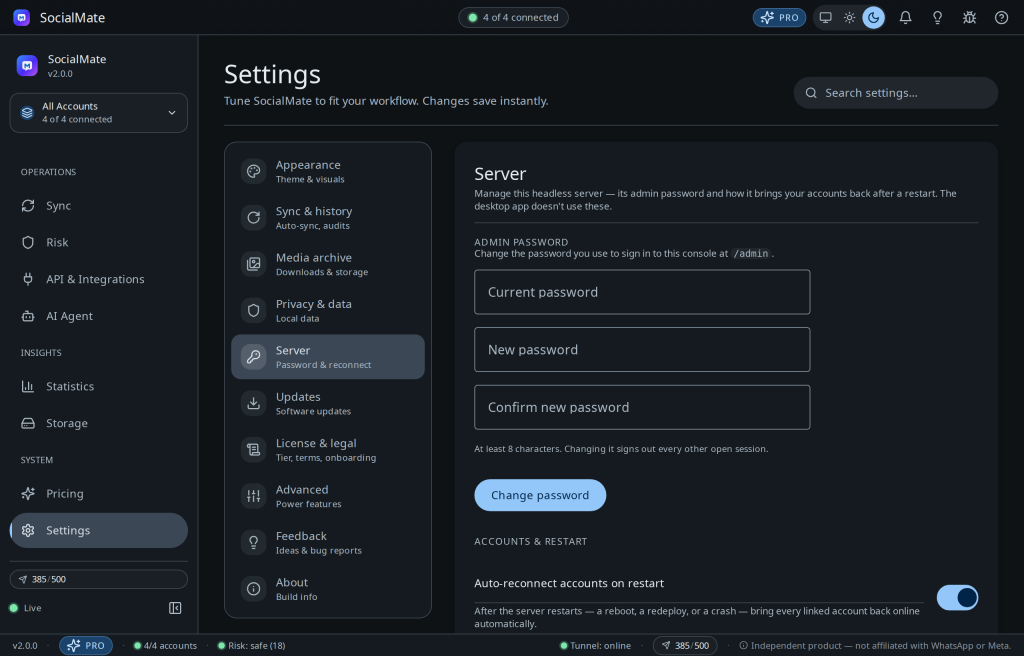
Signed in? Open Settings → Server and set a new password. It takes effect immediately and signs out any other open sessions — no restart, no command line.
Lost it and can’t sign in? See Troubleshooting → reset the admin password for the recovery steps.