SocialMate keeps itself current and gives you a clean recovery path when you need one.
Updates
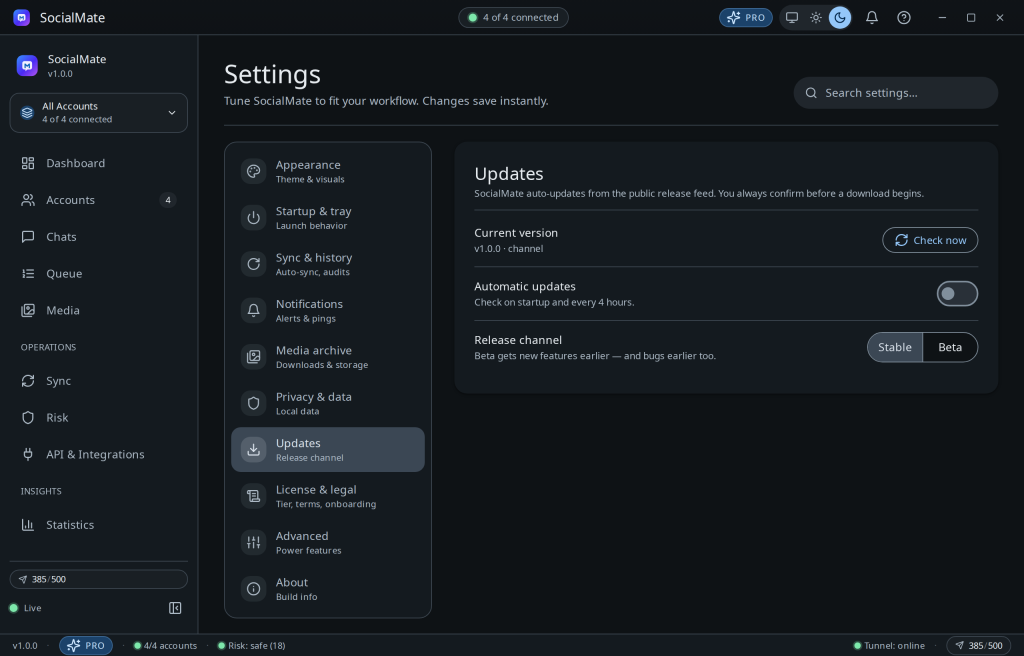
- On Windows and Linux, updates download from official release storage with a progress banner and install on restart. On a Mac, SocialMate tells you when a new version is out; download it from the download page and install it over the old one (see Updates on a Mac).
- Prefer early builds? Switch to the beta channel in Settings → Updates. The changelog lists every change.
Resetting safely
- Back up first. Your data is in
~/.wa-agent-server/— copy it before any reset. - Use the in-app reset options to clear a specific account/session rather than nuking everything.
- After a reset, re-link numbers and let new sessions warm normally.
Careful. Deleting the data directory removes your local archive and sessions. Back it up first, and remember a reset doesn’t touch your license — re-activate from Settings → License. The 7-day Pro trial is per-machine, too: resetting or reinstalling the app won’t grant a new trial.
Was this helpful?
Thanks for the feedback!