The Claude Agent · Connect
Connect a WordPress site
Products, orders, bookings and forms as tools.
Pro
The free WordPress plugin SocialMate – Messaging & AI Agent connects your site to SocialMate. On Pro it gives the Claude Agent your site as tools — content, WooCommerce products and orders, a basket and checkout in the chat, bookings and form entries — and sends the site events you set to Agent task to the agent as jobs. (Its messages work on every plan; see the WordPress section.)
1Install the plugin and connect it
Install and activate the plugin on your site (Install the plugin). In SocialMate, open API & Integrations → WordPress and create a connection token; paste it on the plugin’s Setup → Connect step. One token links messages and the agent. The full walk-through, including how the site reaches SocialMate, is in Connect to SocialMate.
2Check it under Connectors
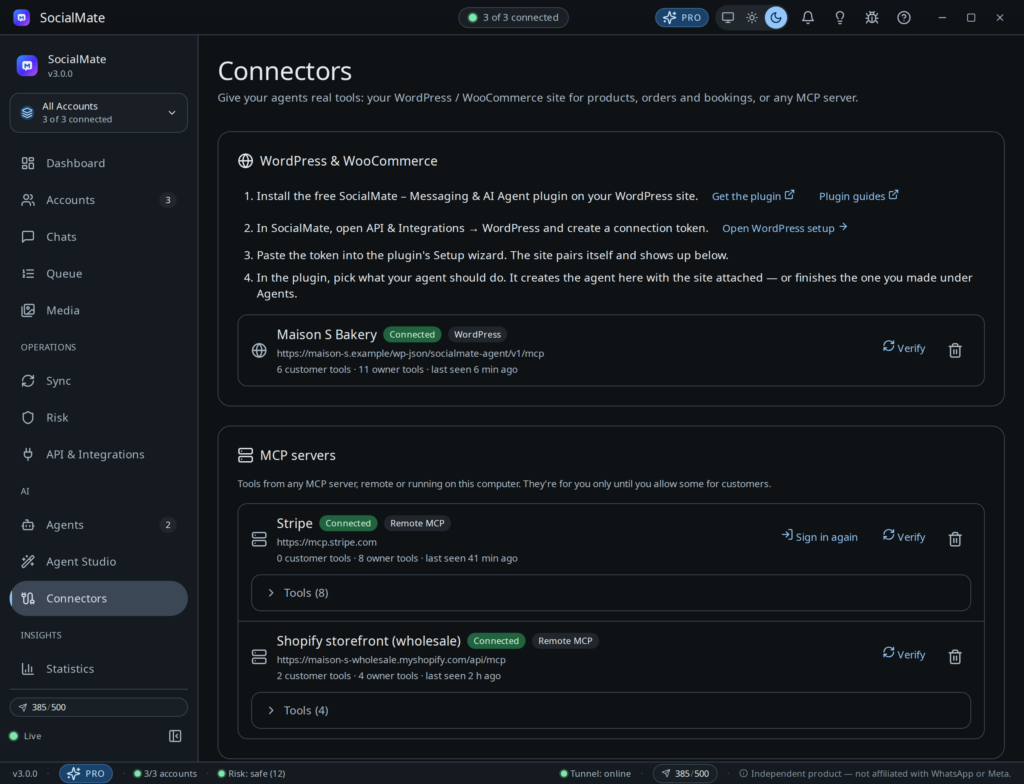
In the sidebar, under AI, open Connectors. Your site appears in the WordPress & WooCommerce card with its status (Connected, Failing or Not verified), its address, how many customer and owner tools it offers and when it was last seen. Verify re-checks it.
3Tell the agent what to do on the site
In the plugin’s Setup, at the The agent step, choose what your agent should do: sell in WhatsApp, answer order questions, confirm cash-on-delivery orders, take bookings, reply to form leads, restaurant, or answer from your pages. One click opens the matching tools for customers, sets that job’s events to Agent task on the plugin’s Events tab (only events that are still off — never one you already send a message for), and creates the agent in the app with the site attached — or finishes the one you already made. See Set up the agent in the plugin guides.
Started in the app instead? A preset that works with a website (Online shop, Order help desk, Cash-on-delivery confirmation, Clinic / health, Website leads, Restaurant / café, Support desk) leaves “One step left” in the plugin’s Setup; one click there completes it.
4Switch the site on for the agent
On the agent’s Tools tab, under Connectors, the site has a switch. It is on when the site was attached; if a paired site is not in use, a note offers Use it. With several sites, switch on the one this agent should use — an agent never mixes up two businesses’ catalogues on its own. If the site has no tools open to customers yet, Open website setup takes you there.
What the agent can do on your site
The plugin offers 70+ tools in packs, and you switch each one on in wp-admin under Agent → What it may do, separately for customers and for owners (Tools and who may use them):
- Content — search the site, read pages and posts; for owners, drafts, publishing and comments.
- WooCommerce — find and show products, a customer’s own orders, confirm or cancel their order.
- Checkout in the chat — basket, coupons, delivery details and options, payment choice,
place_orderand a payment link, returns and back-in-stock requests. - Store management (owners) — orders needing attention, mark paid, tracking, stock, prices, coupons, product drafts.
- Bookings through Amelia, Bookly or FluentBooking, and form entries from Contact Form 7 (with Flamingo), WPForms, Gravity Forms or Fluent Forms.
- WordPress Abilities (WordPress 6.9+) — abilities your other plugins register.
In the agent they appear with a short prefix, shown on the Tools tab as “tools appear as cx…”. Under Tool rules on the same tab you can set any of them to Ask me first, Run on its own or Never use; tools that change data are marked Changes data.
A customer only ever sees their own data. Customer tools take no phone number, email or record id from the conversation: SocialMate signs each call with the number of the person in the chat, and the site matches orders and bookings against it. Owner tools work only for the numbers the plugin gives owner tools, each mapped to a WordPress user.
Two-way: events and approvals
- Site → agent: new orders, status changes, bookings, form entries and other plugins’ actions that you set to Agent task on the plugin’s Events tab start event jobs, each with your own instruction and audience (the customer or you).
- Agent → site: the site is told about hand-offs, approvals waiting and decided, the agent pausing or resuming, and budget warnings, so the plugin’s wp-admin screens (Agent, Inbox, Activity) stay current. A website action held for approval shows as Website action in the app’s Inbox and in the plugin’s Inbox.
- One choice per event: each event in the plugin is off, a message you wrote, or an agent task, so a customer moment such as “order shipped” is told by your plugin message or by the agent, never both.
Disconnect
On Connectors, the delete button on the site’s row (Remove) stops agents using its tools right away and tells the site to forget the pairing. To reconnect, pair again from the plugin.