SocialMate – Messaging & AI Agent · The agent
Set up the agent
Pick a job; the plugin does the rest.
Pro
The Claude Agent answers your customers on WhatsApp with what is on your website — products, orders, bookings, pages — and asks you first before the changes you choose. It is built on Anthropic’s Claude Agent SDK and runs in your SocialMate app; the model is your choice. In the plugin you pick a job, and Setup switches on only the tools that job needs and gives the agent the events it is for.
Before you start
- Pro SocialMate Pro (or the trial), the plugin connected, and The agent on this site switched on at the top of the Agent tab.
- An AI provider added in the SocialMate app and passing Test connection — Claude, or another provider such as DeepSeek, OpenRouter or a local Ollama model. See Connect a model.
- The SocialMate app running while you set up — the agent screens in wp-admin talk to it.
The jobs you can pick
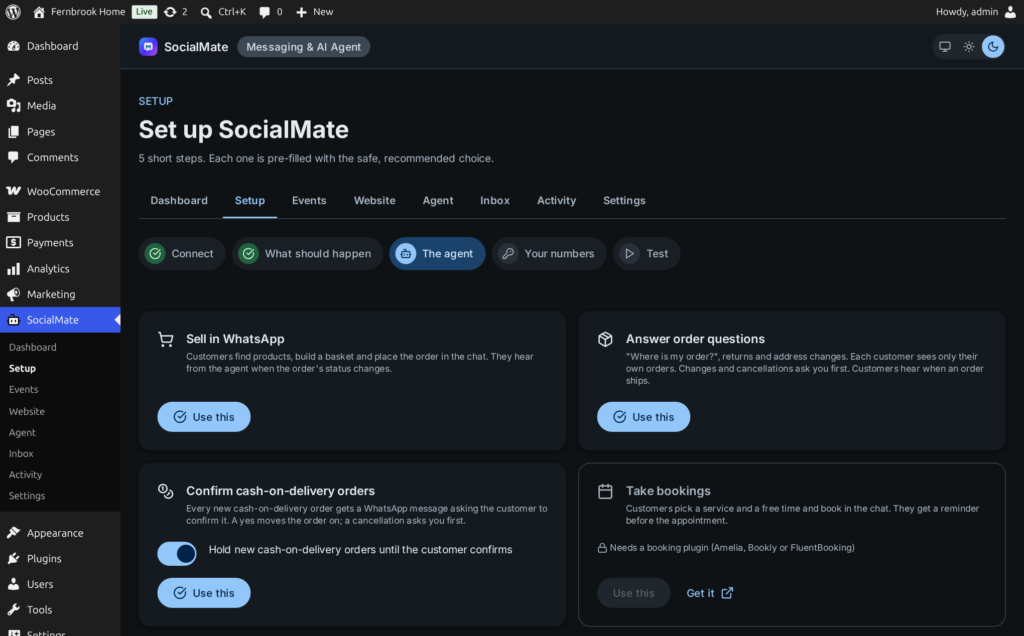
- Sell in WhatsApp — Customers find products, build a basket and place the order in the chat, and hear from the agent when the order’s status changes. Needs: WooCommerce.
- Answer order questions — “Where is my order?”, returns and address changes. Each customer sees only their own orders; changes and cancellations ask you first. Needs: WooCommerce.
- Confirm cash-on-delivery orders — Every new cash-on-delivery order gets a message asking the customer to confirm it. A yes moves the order on; a cancellation asks you first. Needs: WooCommerce with Cash on delivery switched on.
- Take bookings — Customers pick a service and a free time and book in the chat, with a reminder before the appointment. Needs: Amelia, Bookly or FluentBooking.
- Reply to form leads — Everyone who sends one of your forms with their number gets a reply on WhatsApp right away. Needs: Contact Form 7, WPForms, Gravity Forms or Fluent Forms.
- Restaurant: menu, orders, tables — Menu orders in the chat and table bookings, with order updates and booking reminders. Needs: WooCommerce or a booking plugin.
- Answer questions from your site — Answers from your published pages and posts — opening hours, policies, services. Nothing on the site changes. Needs: Nothing extra.
A job your site cannot do yet shows what is missing, with a Get it link to install the plugin it needs.
Steps
1Pick a job
Open SocialMate → Setup and go to its third step, The agent. With more than one WhatsApp number, choose it under For which WhatsApp number?. Then press Use this on the job you want.
- Booking jobs ask how New bookings work: I confirm each one (recommended) or Booked instantly.
- The cash-on-delivery job has Hold new cash-on-delivery orders until the customer confirms, on to begin with: such orders stay on hold until the customer says yes. Later, the same switch is on the Ask them to confirm the order event (Events → WooCommerce → Orders).
The plugin switches on that job’s tools here, creates the agent in SocialMate with this website attached, and sets that job’s events to Agent task — but only events that are still off. A message you already wrote is never replaced. A banner says what was done. Using a second job later adds to the same agent and never takes anything away.
2Add your numbers
Your numbers asks for your own WhatsApp numbers: the WhatsApp number, which WordPress user it Acts as, and an optional label. Alerts go to these numbers; a number marked for owner tools gets them (sales, drafts, publishing) — everyone else is a customer. Manage them later under Settings → Your business & owners. See Owners and approvals.
3Review what it may do
A job opens only the tools it needs. To see or change them, open Agent → What it may do (or press Choose tool by tool in Setup): Use recommended (every read tool on, every tool that changes something set to ask you first), Sell on autopilot for a store, and each group’s switch. See Tools and who may use them.
4Check the events
On the Events tab, each event the job took is set to Agent task, with an instruction you can change in your own words. Any event can be switched between Off, Send a message and Agent task at any time — see The Events tab.
5Test the tools
Setup’s last step, Test, runs real tools through the same checks the agent goes through, without changing anything: Run search_site (a customer asks something your site answers) and Run site_overview (you ask for an overview). Press Finish.
6Try it in the app, then switch it on
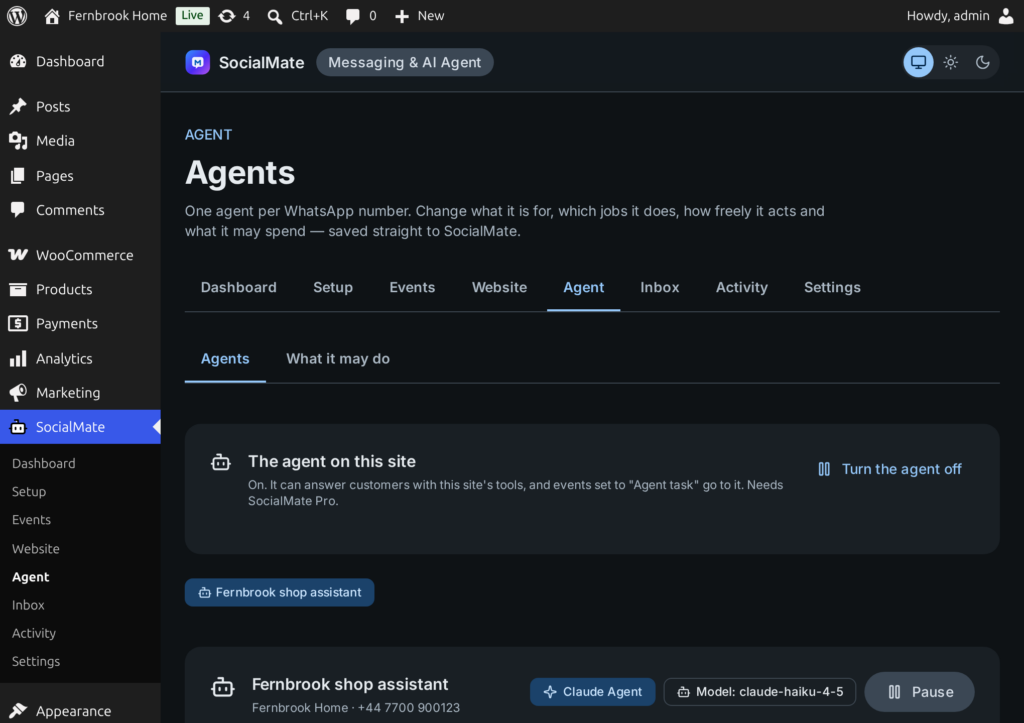
A new agent starts in Observe: it drafts replies and sends nothing. In the SocialMate app open Agents → your agent → Test to talk to it with the real model and tools, without sending. When you are happy, change How freely it acts:
- Copilot — everything it wants to send or do waits for your approval.
- Autopilot — answers by itself and asks you before anything risky (recommended).
- Autonomous — acts on its own except tools you marked “ask first”; hard limits still apply.
You can change it in the app or in wp-admin under SocialMate → Agent → Agents, together with the agent’s name, what it is for, its jobs and its daily and monthly budget — then Save to SocialMate. Pause and Resume are there too.
Good to know
“No AI model is chosen for this agent yet” after picking a job means the agent exists but cannot answer. Add an AI provider under Agents in the SocialMate app, test it, then use the job again.
- One agent per WhatsApp number. Persona, knowledge, model and tools are edited in the SocialMate app; purpose, jobs, autonomy and budgets can also be changed in wp-admin.
- Picking a job before connecting sets up the website side only; connect, then use the job again to create the agent.
- One choice per event: an event set to Agent task is not also sent as a message, so nobody hears it twice. Switching the agent off under Agent → The agent on this site closes its tools and stops agent tasks; messages still send.
- The agent screens in wp-admin need the SocialMate app to be running. While it is closed they say so, and the rest of the plugin keeps working.
Next
- Tools and who may use them
- Inbox, take-over and activity
- Test before you go live — the app’s test console.
- The Claude Agent for WordPress