SocialMate – Messaging & AI Agent · The agent
Use the tools from any MCP client
Access keys for Claude Desktop, Cursor and n8n.
The tools the plugin gives the Claude Agent are also a standard MCP server on your own site. With an access key, any MCP client — Claude Desktop, Cursor, n8n’s MCP client or your own script — can search your content, look up products and orders, or draft a post, with or without SocialMate.
Before you start
- No server needed The plugin installed. No SocialMate app and no paid plan are needed for this.
- The agent on this site switched on at the top of the Agent tab (it starts on) — it owns the What it may do and Inbox screens you use here, and while it is off the tools are closed. It does not need Pro until SocialMate’s own agent uses it.
- The tools you want switched on under SocialMate → Agent → What it may do (Tools and who may use them).
- An https address for your site if the client is not on the same machine, and pretty permalinks (anything but “Plain”) so /wp-json/ works.
Create a key and connect a client
1Create an access key
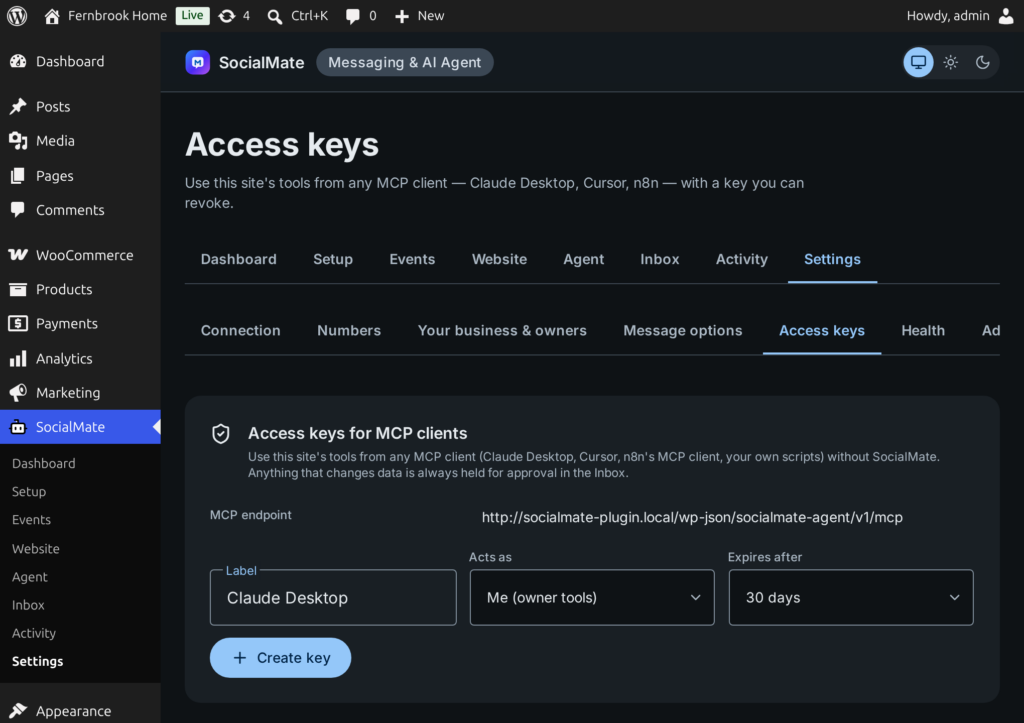
Open SocialMate → Settings → Access keys. The card shows your MCP endpoint. Fill in:
- Label — e.g. “Claude Desktop”.
- Acts as — Me (owner tools): the tools you allowed for owners, run as your WordPress user. Or A customer (customer tools only).
- Expires after — 7, 30 or 90 days, or Never.
Press Create key. Your new access key appears once, starting with smak_ — copy it now; it is stored hashed and cannot be shown again. Below it the plugin prints a ready MCP client configuration with your address and key filled in.
2Note the endpoint and the header
Endpoint: https://YOUR-SITE/wp-json/socialmate-agent/v1/mcp. Transport: Streamable HTTP (each request is a JSON-RPC POST; answers are plain JSON). Every request carries the header Authorization: Bearer smak_….
3Add it to your client
Use one of the configurations below, replacing the address and the key with yours.
Cursor (and other clients that take a URL and headers)
In ~/.cursor/mcp.json, or the project’s .cursor/mcp.json:
{
  "mcpServers": {
    "my-shop": {
      "url": "https://example.com/wp-json/socialmate-agent/v1/mcp",
      "headers": {
        "Authorization": "Bearer smak_YOUR_KEY"
      }
    }
  }
}
Claude Desktop
Claude Desktop starts local MCP programs from claude_desktop_config.json, so a remote server with a key goes through the open-source mcp-remote bridge (needs Node.js). Add this, then restart Claude Desktop:
{
  "mcpServers": {
    "my-shop": {
      "command": "npx",
      "args": [
        "-y",
        "mcp-remote",
        "https://example.com/wp-json/socialmate-agent/v1/mcp",
        "--header",
        "Authorization:${AUTH_HEADER}"
      ],
      "env": {
        "AUTH_HEADER": "Bearer smak_YOUR_KEY"
      }
    }
  }
}
Keeping “Bearer …” in an environment variable avoids a space inside the arguments, which some systems split.
n8n (MCP Client Tool)
In an AI Agent workflow, add the MCP Client Tool node. Set the endpoint to your MCP address, choose the HTTP Streamable transport, and authenticate with a Bearer credential whose token is your smak_ key (or a header credential sending Authorization: Bearer smak_…).
Your own script
# List the tools this key may use
curl -s https://example.com/wp-json/socialmate-agent/v1/mcp \
  -H "Authorization: Bearer smak_YOUR_KEY" \
  -H "Content-Type: application/json" \
  -d '{"jsonrpc":"2.0","id":1,"method":"tools/list"}'

# Call one
curl -s https://example.com/wp-json/socialmate-agent/v1/mcp \
  -H "Authorization: Bearer smak_YOUR_KEY" \
  -H "Content-Type: application/json" \
  -d '{"jsonrpc":"2.0","id":2,"method":"tools/call",
       "params":{"name":"search_site","arguments":{"query":"opening hours"}}}'
The same tools are also plain REST routes, if you would rather not speak MCP:
# The same tools as plain REST
curl -s https://example.com/wp-json/socialmate-agent/v1/tools \
  -H "Authorization: Bearer smak_YOUR_KEY"

curl -s -X POST https://example.com/wp-json/socialmate-agent/v1/tools/find_products/call \
  -H "Authorization: Bearer smak_YOUR_KEY" \
  -H "Content-Type: application/json" \
  -d '{"query":"sourdough"}'
Good to know
Changes always wait for you. Anything that changes data, requested through an access key, is held — whatever the tool’s approval setting — and appears in SocialMate → Inbox → Held from MCP clients. Approving carries out exactly what is described.
- An owner key acts as the WordPress user who created it, with that user’s permissions. It stops working if that user is deleted.
- A customer key has no WhatsApp customer behind it, so tools about “their own” orders, bookings or account have nothing to find. Use it for public reads such as searching the site or the products.
- A tool that is off, or not allowed for the key, looks exactly like one that does not exist.
- Each key’s calls are marked “access key” under Activity. The keys table shows when each was last used; Revoke removes one at once.
- Limits: Max tool calls per minute (300 by default) under Settings → Advanced; over it the server answers “Too many requests”.
- This is the plugin’s server for your website’s tools. To give an AI client your WhatsApp itself — chats, messages, sending — use SocialMate’s own MCP server, socialmate-mcp.