SocialMate – Messaging & AI Agent · The agent
Tools and who may use them
Customer and owner lanes, Ask me first.
Pro
The agent works on your website only through tools you switch on, one by one, and for each one you decide who may use it: customers (strangers on WhatsApp, who only ever see their own data) or you (your owner numbers). The plugin ships 70+ built-in tools, grouped by the plugin they work with; each group appears when that plugin is active.
Before you start
- Pro The agent part switched on (see Set up the agent). Picking a job already switched on the tools it needs; this guide is for fine-tuning.
The groups
- Website content — search_site, get_page, list_content, site_overview, create_draft, publish_content, reply_to_comment …
- WooCommerce store — find_products, show_product, list_my_orders, get_my_order, cancel_my_order, sales_summary, low_stock …
- Selling in the chat — view_basket, add_to_basket, apply_coupon, set_delivery_address, choose_payment, place_order, get_payment_link …
- Running the store (owners) — orders_needing_attention, mark_order_paid, add_tracking, update_stock, set_price, create_coupon …
- Customers & accounts — get_my_account, update_my_account, find_customers, send_reset_link …
- Appointments (Amelia, Bookly, FluentBooking) — list_services, find_available_slots, book_appointment, my_bookings, cancel_my_booking, bookings_on
- Forms (Contact Form 7 + Flamingo, WPForms, Gravity Forms, Fluent Forms) — list_forms, list_form_entries, forms_summary
- WordPress Abilities (WordPress 6.9+) — every ability another plugin registers
Steps
1Start from a safe base
Open SocialMate → Agent → What it may do. At the top, Use recommended turns on every read tool and every tool that changes something with “Ask me first”. On a store, Sell on autopilot lets customers build a basket, give their address, choose delivery and payment and place the order in the chat without waiting for you — nothing is charged in the chat; online payment goes through your normal checkout page.
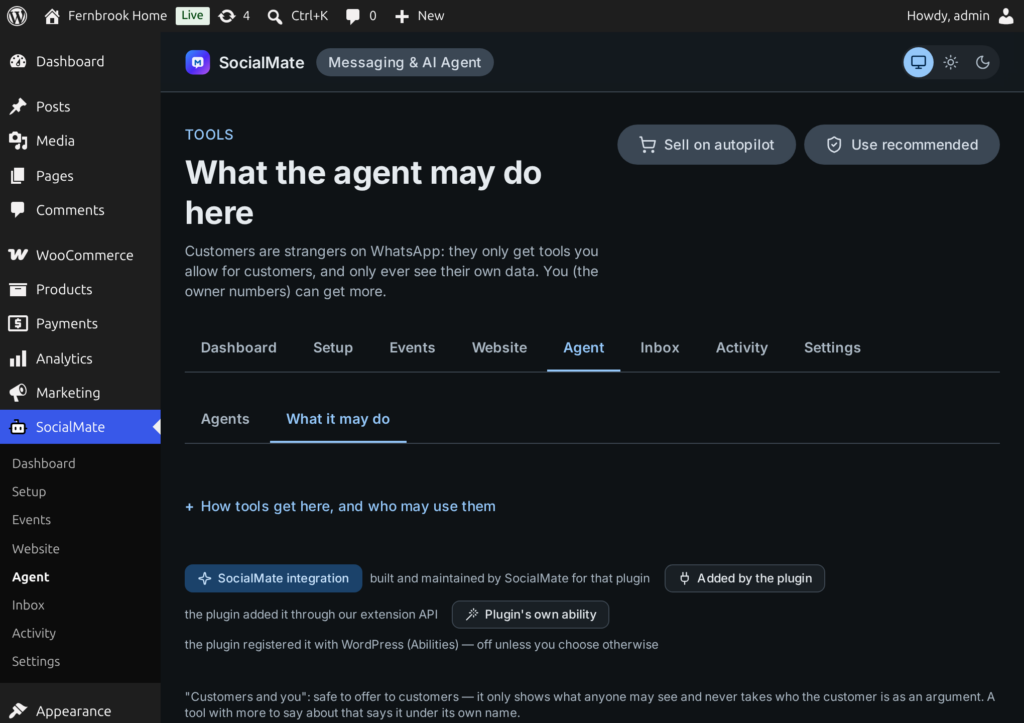
2Switch groups on or off
Each group has Use this group. Off, the agent cannot use any of its tools, and your settings for each tool are kept for when you turn it back on. Turn all on and Turn all off work on a whole group (turning all on still makes changes ask you first).
3Set each tool
Each row has:
- On — whether the agent can use it at all.
- Who may use it — Customers and you, Only you or Only customers, as the tool allows. A chip their own data only marks tools that work on the customer’s own records.
- Changes data? — Read only, or an Approval choice for tools that change something: Ask me first or Just do it. Some show Always asks first and cannot be set otherwise.
Press Save.
4Test a tool
Open a tool’s Test drawer. Choose As a customer or you; for “their own” tools, type a Customer number — without one, “not found” is the expected answer. Add arguments if needed and press Run. A tool that changes something offers Dry run instead: it shows exactly what would happen and changes nothing.
5Give the agent instructions (optional)
Under a group, Instructions for the agent about these tools holds a note in your words, sent once with the whole group — for example “Offer two or three free times, confirm the name and email, then book.” A single tool has its own Instructions too.
Opening a tool to customers
A tool that passes the safety checks can simply be offered to customers. One that does not starts as Only you, with the reason under it. You can still open it: a warning explains the risk, you tick I understand the risk and want customers to be able to use this tool., and the tool is then marked in red as Open to customers. Some tools cannot be opened to customers at all, and say why.
WordPress Abilities
On WordPress 6.9 and later, plugins can register Abilities (for example a booking plugin’s “check availability”). They appear automatically, grouped under their plugin, and start off. A group’s Use automatically switch turns them on for you only: reads just run, changes ask you first. Customers get an ability only when you choose it for that tool, and it then runs as the WordPress user set in Settings → Advanced → Customer actions run as (a customer or subscriber account; “Nobody” refuses them).
Good to know
The AI never chooses whose data it is. A customer tool cannot take a phone number, email, user id or record id. Who the customer is comes from SocialMate’s signed request, and orders and bookings are matched against that exact WhatsApp number — anything else is “not found”.
- A tool that is off, or not allowed for the caller, answers “not found” — exactly like a tool that does not exist.
- Owner tools run as the WordPress user mapped to that owner number, with that user’s permissions; if the account cannot do something, the tool says so.
- Every tool that changes something starts off. Tools another plugin offers that break a safety rule are listed under Refused tools, with the reason, and the agent never sees them.
- Limits under Settings → Advanced: Max tool calls per minute (300 by default) and Max calls per customer per minute (30).
- Deactivating a plugin removes its tools, and SocialMate is told at once.