SocialMate – Messaging & AI Agent · Events and messages
WooCommerce order updates
Every status, tracking and payment reminders.
Every plan
Tell customers what is happening with their order, on WhatsApp, from your own number: received, being prepared, shipped with tracking, done — plus a nudge when a payment failed or never came. Each one is an event on the Events tab: off, a message you write, or a task for the agent.
Before you start
- Every plan WooCommerce active and the plugin connected to SocialMate.
- “Before anything sends” cleared on Events → Overview — Your first message walks through it.
The events
Every event is off until you choose. Setup’s “What should happen” step suggests a choice for the main ones — shown here in brackets — and you can change any of them on the Events tab.
Orders
- They placed an order (Setup suggests: Send a message) — The moment an order is placed on the website.
- Ask them to confirm the order (Setup suggests: Agent task, with Pro) — With a new order, asking for a yes before you pick and pack. The reply is read by your agent (Pro), which marks the order. This event also holds the switch that keeps cash-on-delivery orders on hold until they confirm.
- You started working on it (Setup suggests: Send a message) — The order moves to Processing.
- The order is on hold (Setup suggests: Off) — The order moves to On hold.
- The order is done (Setup suggests: Send a message) — You mark the order Completed.
- The order was cancelled (Setup suggests: Off) — The order moves to Cancelled.
- You refunded them (Setup suggests: Off) — The order moves to Refunded.
- The order moved to “…” (Setup suggests: Off) — One event for each extra status your shop added.
Payment & delivery
- Their payment did not go through (Setup suggests: Send a message) — The order moves to Failed, with a link to pay again.
- Remind them to pay (Setup suggests: Off) — An order placed and not paid — 6 hours later by default. Called off the moment it is paid.
- It is on its way (Setup suggests: Off) — The first time a tracking number appears on the order.
Set them up
1Open Events → WooCommerce → Orders
In SocialMate → Events, open WooCommerce; Orders is first on its row. Each event shows its name, when it happens, and whether it is a message or an agent task. Expand one to edit it.
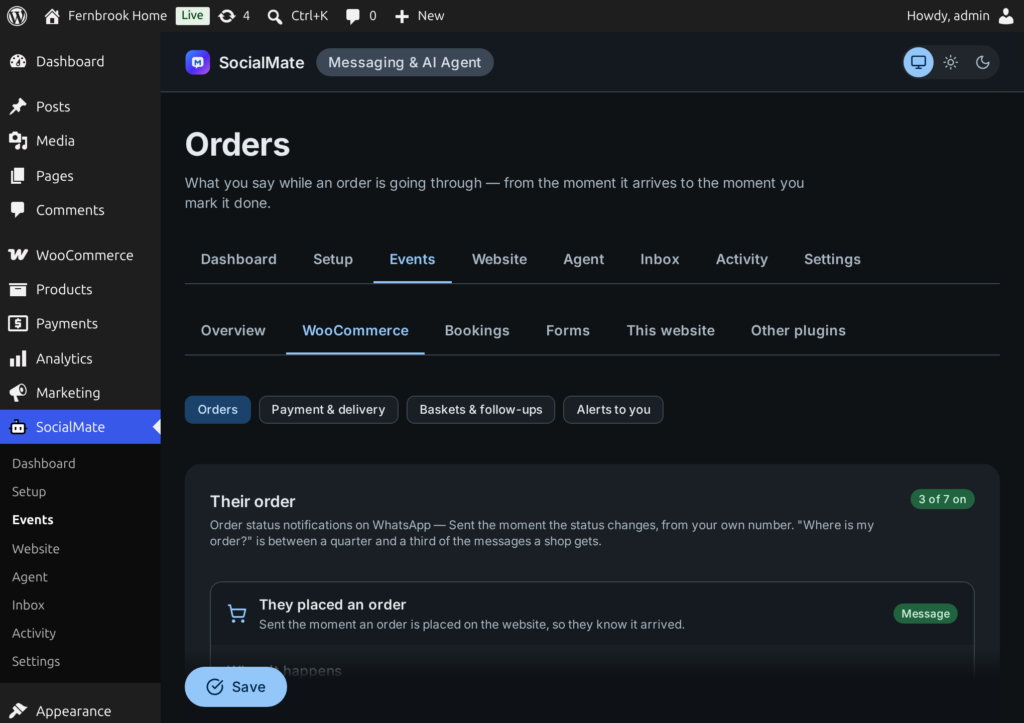
2Choose what happens for each and write it
For each event: under When it happens pick Send a message, change What it says if you like, and press Send this to my number to see it on your phone. Or pick Agent task (SocialMate Pro) and write what the agent should do for this person. Events with a delay (like the payment reminder) also have Wait this long first, in minutes.
Press Save at the bottom of the tab. Saving one tab never touches the events on another.
3Do the same on Payment & delivery
Open Payment & delivery, next on the WooCommerce row, for Their payment did not go through, Remind them to pay and It is on its way, and save.
4Make sure tracking numbers reach the order
“It is on its way” sends the first time a tracking number appears on an order. The plugin reads it from Advanced Shipment Tracking, WooCommerce Shipment Tracking or YITH’s tracking plugin if you use one.
No tracking plugin? On the WooCommerce order screen, the WhatsApp box has Tracking number and Who is carrying it fields. Fill them in and update the order.
What you can put in braces
| Tag | Becomes |
|---|---|
{customer_name} | Their first name, or a plain hello if it is not known |
{shop_name} | The name of your site |
{order_number} | The order number as the customer sees it |
{order_total} | The total, with the currency |
{order_status} | The order’s current status, in your shop’s own words |
{items} | What they bought, one per line |
{pay_link} | A link to pay for the order |
{order_link} | A link to the order |
{tracking_number}, {carrier}, {tracking_url} | The parcel’s tracking details, once there are some |
Basket and stock messages add {cart_link}, {product_name}, {product_link} and {stock_left}. Anything else in braces is left as you wrote it, and {a|b} picks one alternative per message.
On the order screen
Every WooCommerce order gets a WhatsApp box: the customer’s number (or why nothing can be sent to it), the tracking fields, and Messages about this order with each one’s state. You can also write to the customer by hand there — type a message or start from one of your own — and press Save order and send.
Good to know
Order updates need no opt-in. They are about the customer’s own order and go to the number on it. A STOP reply takes someone off offers, never off their order updates.
- An order the Claude Agent placed in a WhatsApp chat does not get “They placed an order” or “Ask them to confirm the order” — the customer was just told in the chat.
- “Ask them to confirm the order” sends the question on every plan, but reading the yes and marking the order is done by the agent, on Pro.
- The payment reminder is called off when the order is paid or moves out of the unpaid statuses, so a customer who paid is not chased.
- Each event has one choice — Off, Send a message or Agent task — so a customer is never told about the same moment by both your message and the agent.
- A number without a country code cannot be messaged. The order screen says so, and the checkout can repair it — see Consent, opt-in and STOP.
Next
- Abandoned basket reminders
- Alerts to you — a message to your own phone for every order.
- Let the agent answer “where is my order?” Pro
- SocialMate for WooCommerce