SocialMate – Messaging & AI Agent · Events and messages
Abandoned basket reminders
Up to three reminders with a restore link.
Every plan
When a shopper who already agreed to hear from you fills a basket and leaves, the plugin can remind them on WhatsApp — up to three times, each with a link that puts their basket back. Reminders stop the moment they order.
Before you start
- Every plan “Before anything sends” cleared on Events → Overview (Your first message).
- A way for customers to agree to hear from you: the WhatsApp tick at checkout (step 1 below), or START on SocialMate Pro. By default reminders go only to people who agreed — the tick on an earlier order, or START — so a first-time shopper who leaves before ordering has not agreed yet and is not reminded. On Pro you can also choose past buyers (step 4).
How a basket is remembered
- A basket is only written down once there is a phone number to remind: the customer typed it at checkout, or it is on their account. No number, no record.
- When the basket has been quiet for 30 minutes it counts as left behind, and the first reminder is queued with its delay.
- Placing an order cancels whatever reminders are still waiting and marks the basket recovered.
- Baskets older than 14 days are not chased.
Steps
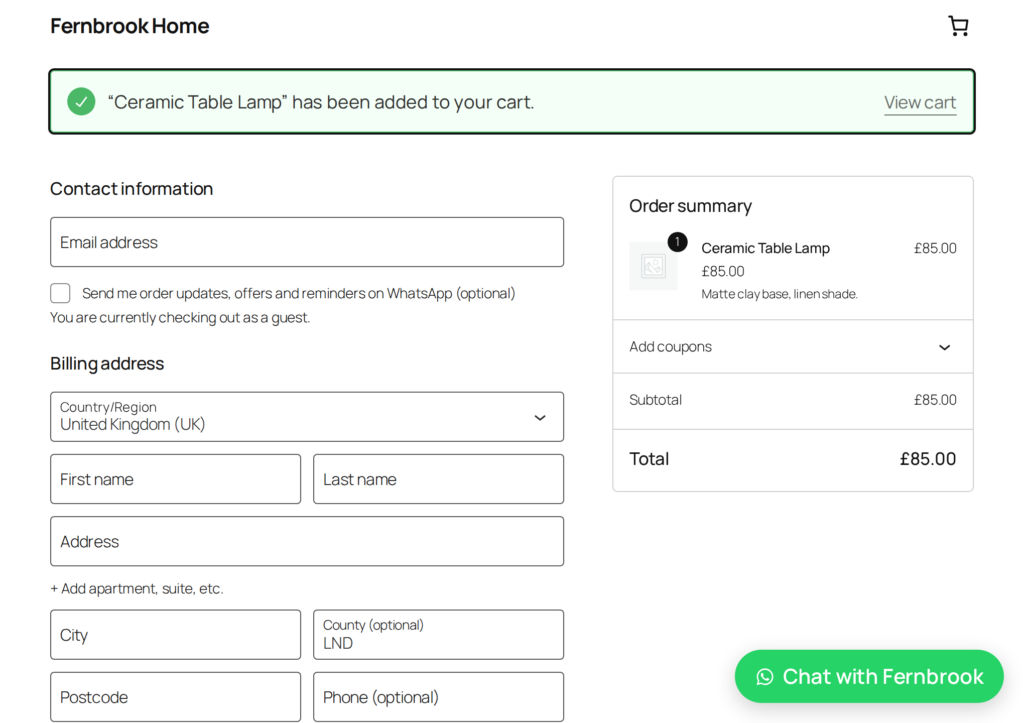
1Ask for permission at checkout
Open SocialMate → Settings → Message options. Under Permission to message them, turn on Ask at checkout, check What the tick says, and press Save. It works on the classic and the block checkout.
The tick counts from the order it was given on: it reaches that shopper’s next basket, not the one they are filling now. A tick on a checkout nobody submitted is not consent.
Details, including the pre-ticked option and phone repair, in Consent, opt-in and STOP.
2Choose the reminders
Open Events → WooCommerce → Baskets & follow-ups. Under The basket they left there are three events:
- They left something behind — the first reminder, an hour after they stop.
- A second reminder — a day later.
- A last reminder — three days later, and then nothing more about that basket.
For each reminder you want, pick Send a message under When it happens (or Agent task with SocialMate Pro). Use one, two or all three; each is off until you choose.
3Write them, with the restore link
Edit What it says. Keep {cart_link} in every reminder — it opens the shop with their basket filled in again. {items} lists what was in it and {customer_name} greets them.
Wait this long first sets each delay, in minutes.
4Choose who gets them
Each reminder has Who gets it:
- Only people who agreed to hear from you (the default) — fewer people, and you can show why you messaged every one of them.
- Only people who have bought something — a middle way: they have an order with you.
- Everyone who has messaged this shop — reaches the most people; in most countries this is not consent, and the risk is yours.
On SocialMate Free, reminders go only to people who ticked your WhatsApp box, whatever this says — the plugin cannot read a STOP reply on Free, so it enforces this when it sends.
Test each one with Send this to my number, then press Save.
Good to know
The waiting happens on your website. The delays live in the plugin’s own queue, so the whole sequence works the same on SocialMate Free and Pro.
- The restore link checks the shop as it is now: a product that has sold out or been unpublished since does not come back into the basket.
- A reminder is not queued while someone is in the middle of a conversation with you (anything sent to them in the last 30 minutes) or has been handed to a person.
- On SocialMate Pro, a customer who replies STOP comes off reminders at once. On Free, STOP replies are not read by the site — another reason to keep “Only people who agreed”.
- The Events Overview counts Baskets recovered after a reminder.